

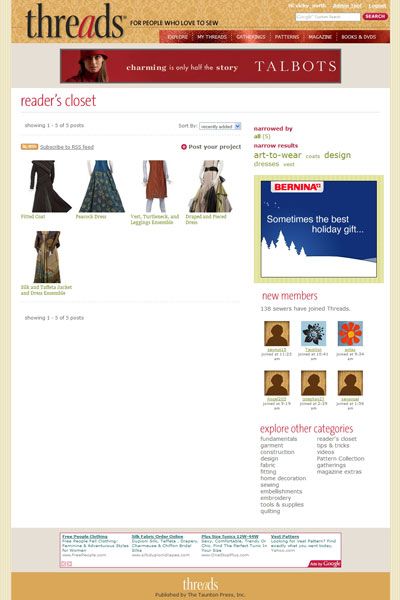
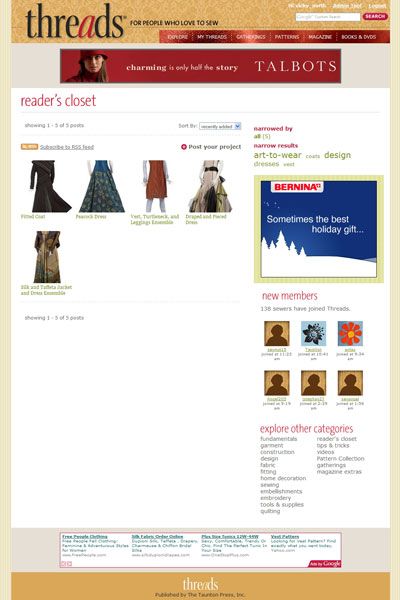
Share your project photos in our Reader's Closet. Your uploaded photos will appear in the gallery and you may be featured on our homepage.
To post a project to the Reader’s Closet:
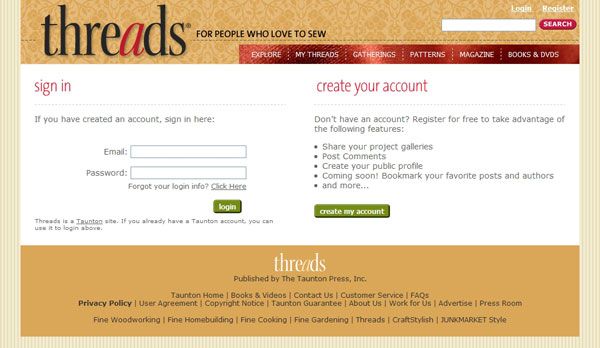
- Login (if you already have a member name and password for Gatherings or another Taunton site, you can use your email address and password here)
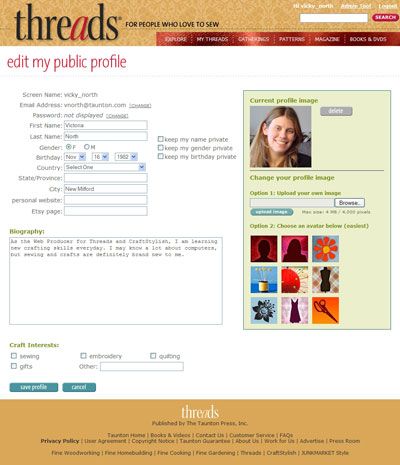
- Create your profile. Let other members know more about you. You can choose one of our photos or upload your own. If you choose to skip this step, you can always come back and update your profile later.
- Post a project in the reader’s closet. Click the reader’s closet link on the homepage or “write new post” on your profile page.
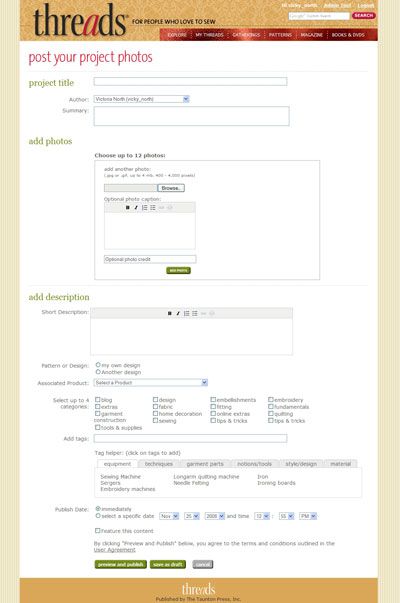
- Upload your project photos with a short description, list the pattern used, and choose the categories that best describe your project.
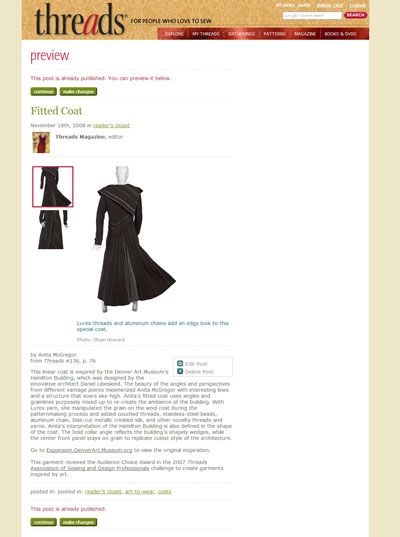
- You can either Preview and Publish or Save as Draft. If you clicked Preview and Publish and are happy with your post, click Continue. Otherwise, click Make Changes.
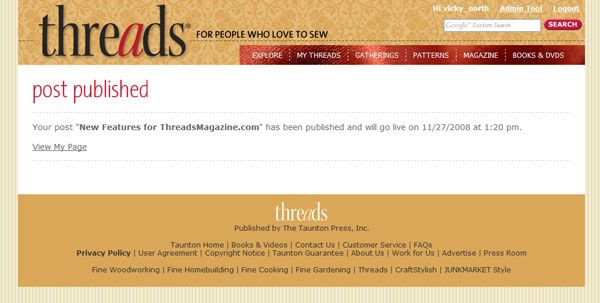
- Once you have published your post you will see a confirmation screen where you can share your post with others.


This site is protected by reCAPTCHA and the Google
Privacy Policy and
Terms of Service apply.
See all newsletters







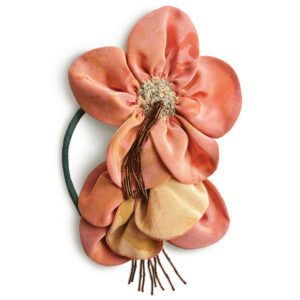

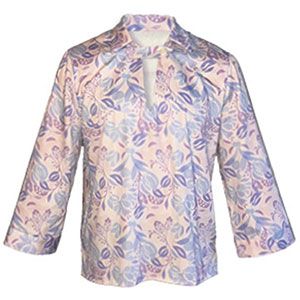
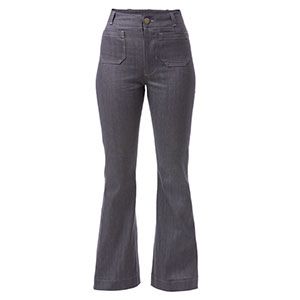
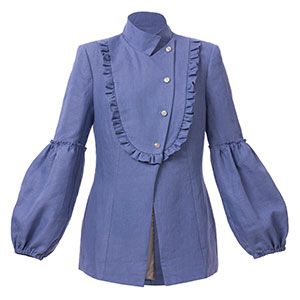
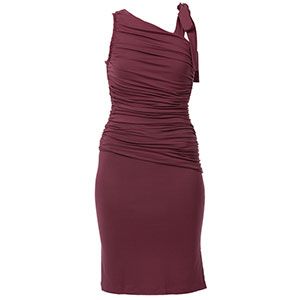
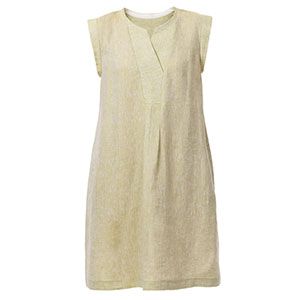

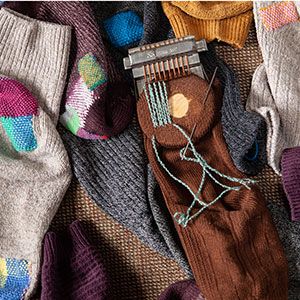
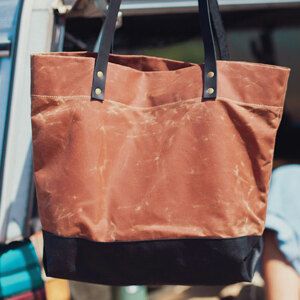










Hi, I've been going over all the information regarding the Summer linen contest (and enjoying the beautiful entries). The problem that has stymied me is not being able to enter the photos that I took into the proper entry vehicle.
My photos are all in Picassa3; but they won't carry over! Would it be possible to just e-mail them to threads.com directly? The address that I have is threadsmagazine.com/share/gallery/8489?contest=56.
Any help would be appreciated.
Thanks, emma-paula